User/Pass Auth
1. Sign Up / Log In
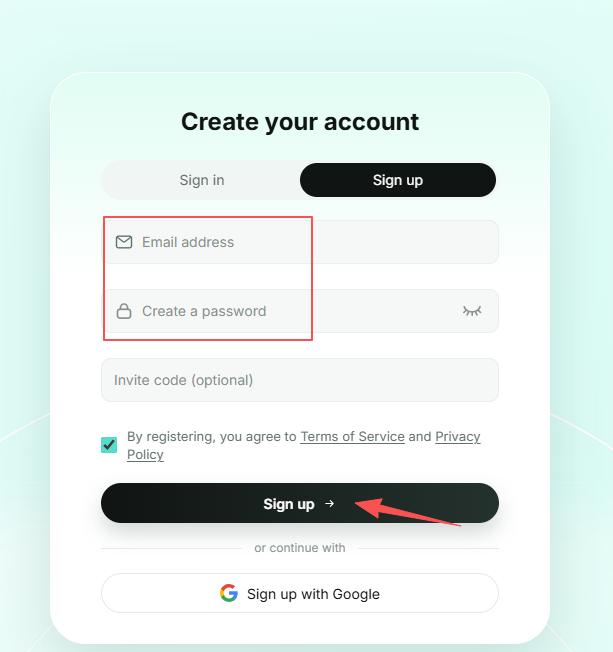
Visit the official SK5Data website and click Sign Up in the upper-right corner to create an account.
2. Purchase a Plan
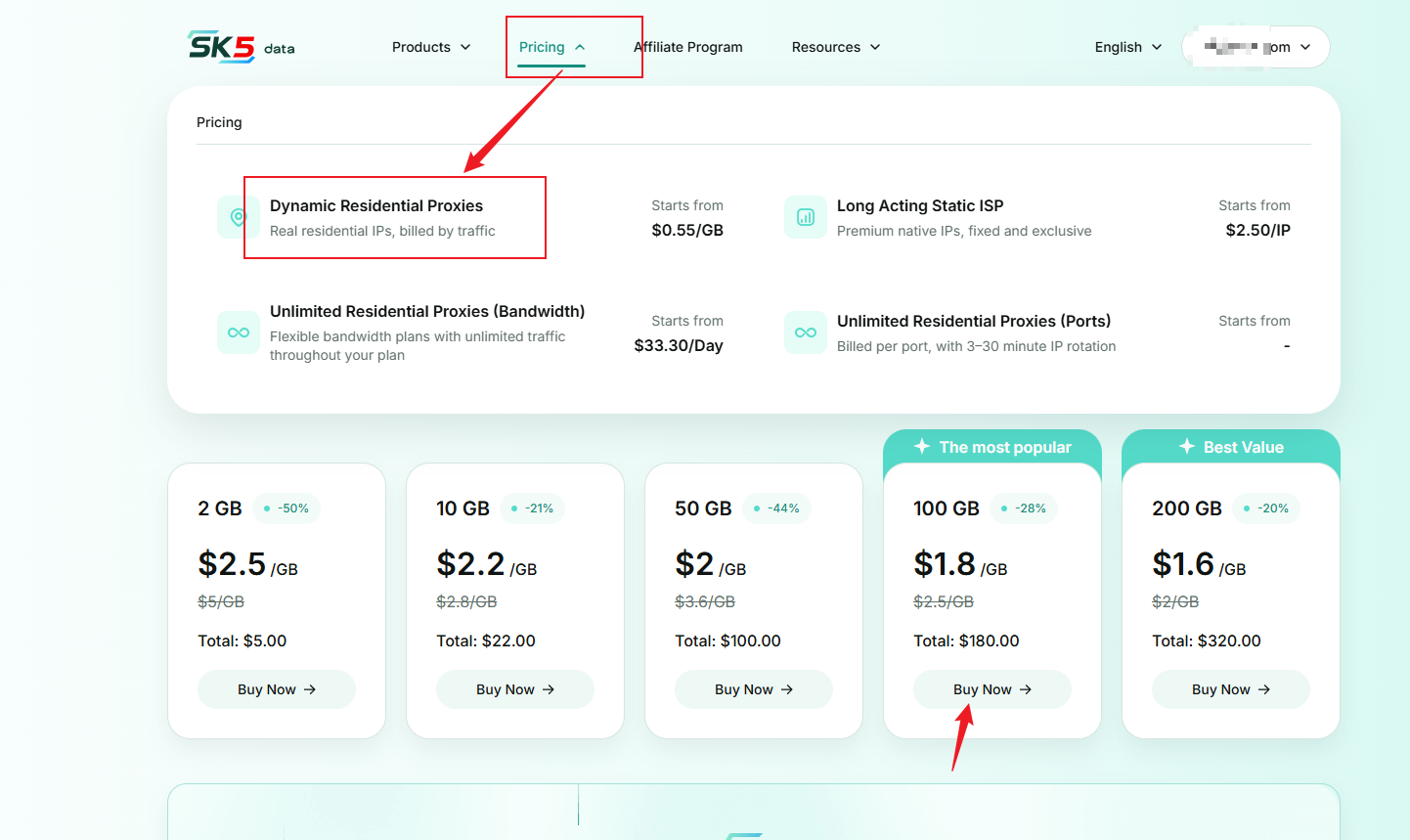
After logging in, go to the Residential Proxies purchase page. Choose a suitable plan from the Standard or Enterprise options based on your traffic needs, then click Buy Now to complete your payment.
3. Account Settings
When connecting to proxies using username and password authentication, the system uses your main account as the default username. If you need additional accounts, you can manage them through the sub-account feature.
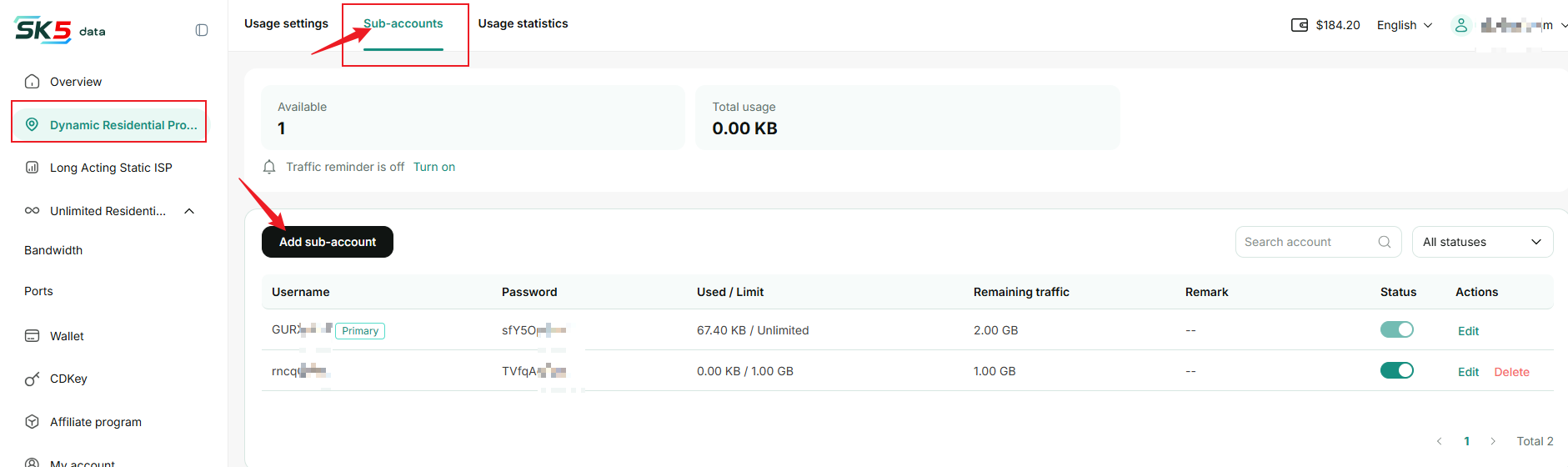
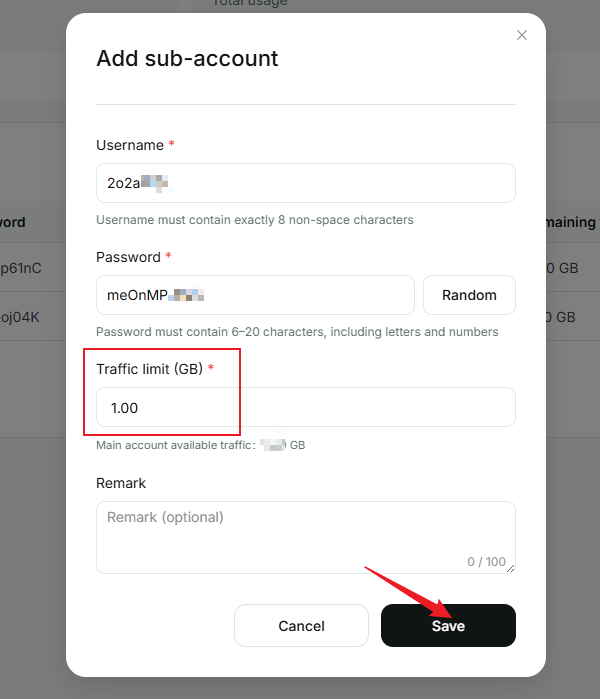
In the dashboard, navigate to Residential Proxies → Sub-Accounts → Add Sub-Account, then click Add Sub-Account to create a new proxy user.
You can set the proxy username, password, and account status (Enabled or Disabled), and configure a traffic usage limit by specifying the maximum allowed traffic.
After completing the configuration, click Save to apply the settings.
Manage Accounts
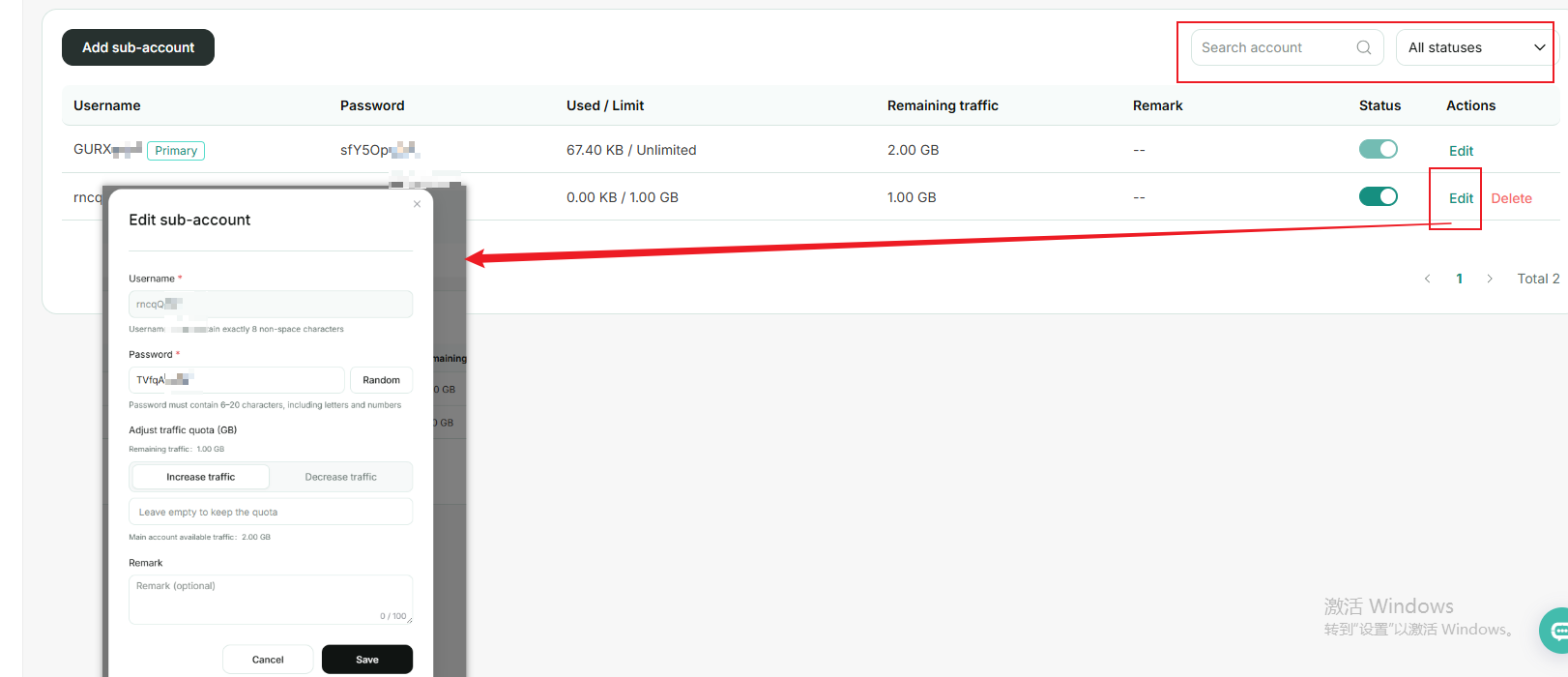
On the Sub-Accounts page, you can perform the following actions:
- Search & Filter: Quickly find sub-accounts by entering a username or filtering by account status.
- Edit Account Information: Click Edit to update the username, password, remarks, account status, and traffic usage limit. (Allocated traffic cannot exceed the main account's available balance.)
4. Get Proxies
1. Authentication Method
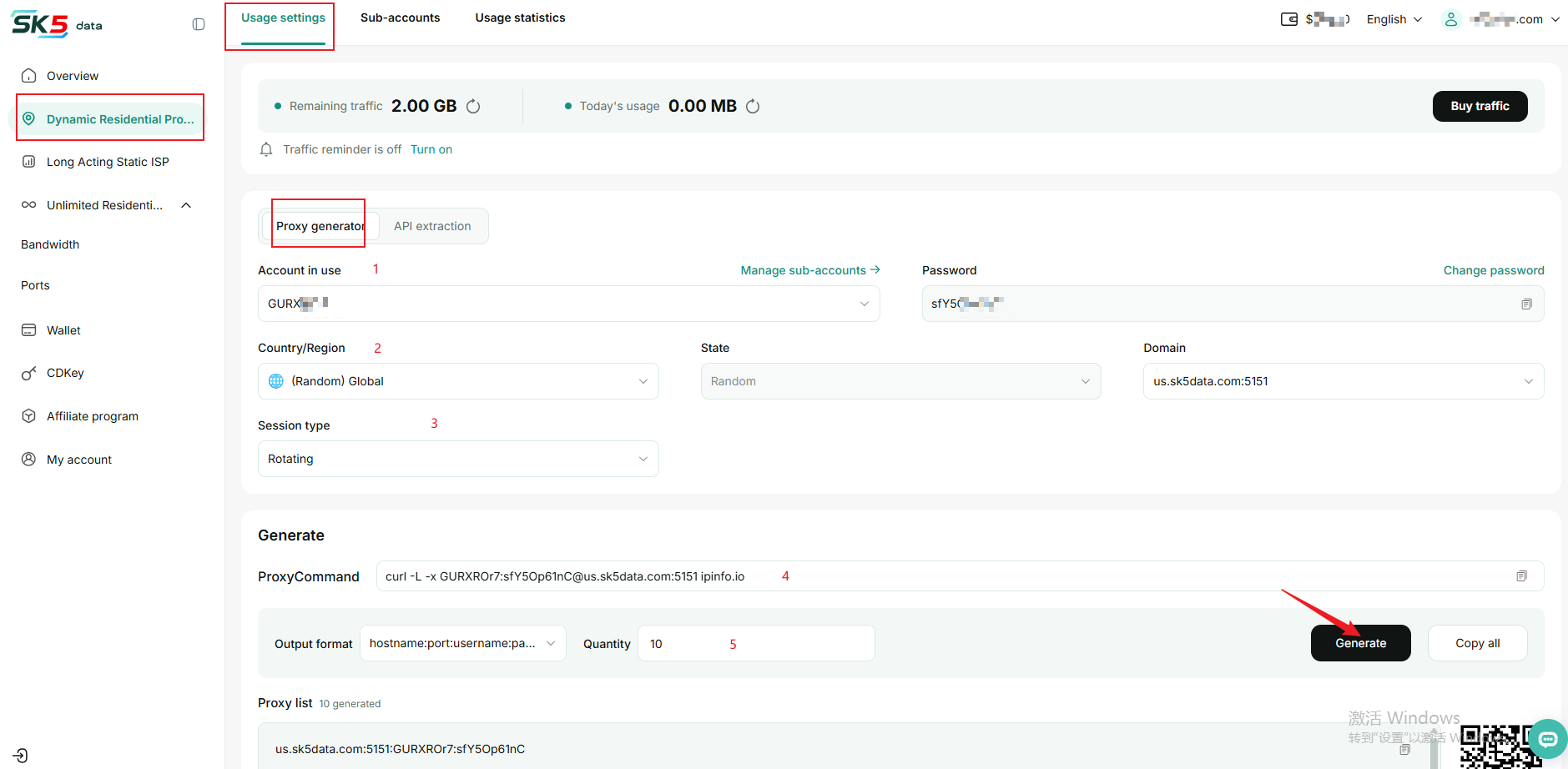
Select Username & Password Authentication under Usage Settings. The system uses your main account as the default proxy username. You can also select a sub-account from the dropdown menu.
2. Location & Protocol
The system automatically assigns proxy locations. You can customize the location by country, city, or ASN and select the proxy protocol (HTTP / SOCKS5).
3. Session Type
- Rotating Session: Automatically changes the IP address with each request, ideal for large-scale web scraping.
- Sticky Session: Keeps the same IP address for 1–120 minutes, ideal for tasks requiring a persistent connection.
4. Test Proxy Connectivity
Copy and run the test command provided on the proxy generation page to verify connectivity.
bash
curl -L -x "[username]:[password]@[hostname]:[port]" ipinfo.io5. Output Format
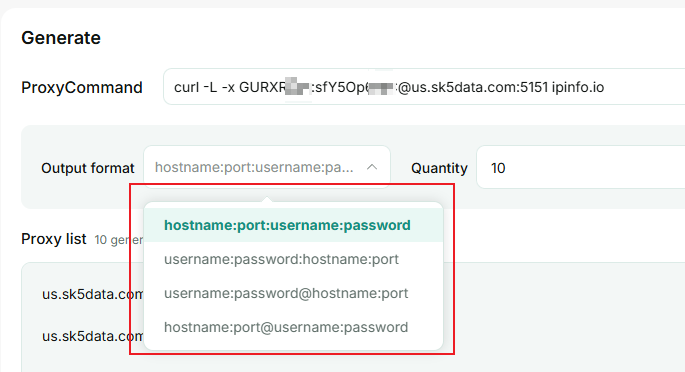
Select the connection protocol, number of proxies, and export format to generate your proxies.
The generated credentials follow this format:
Proxy Host:Port:Username:Password
5. Usage Statistics
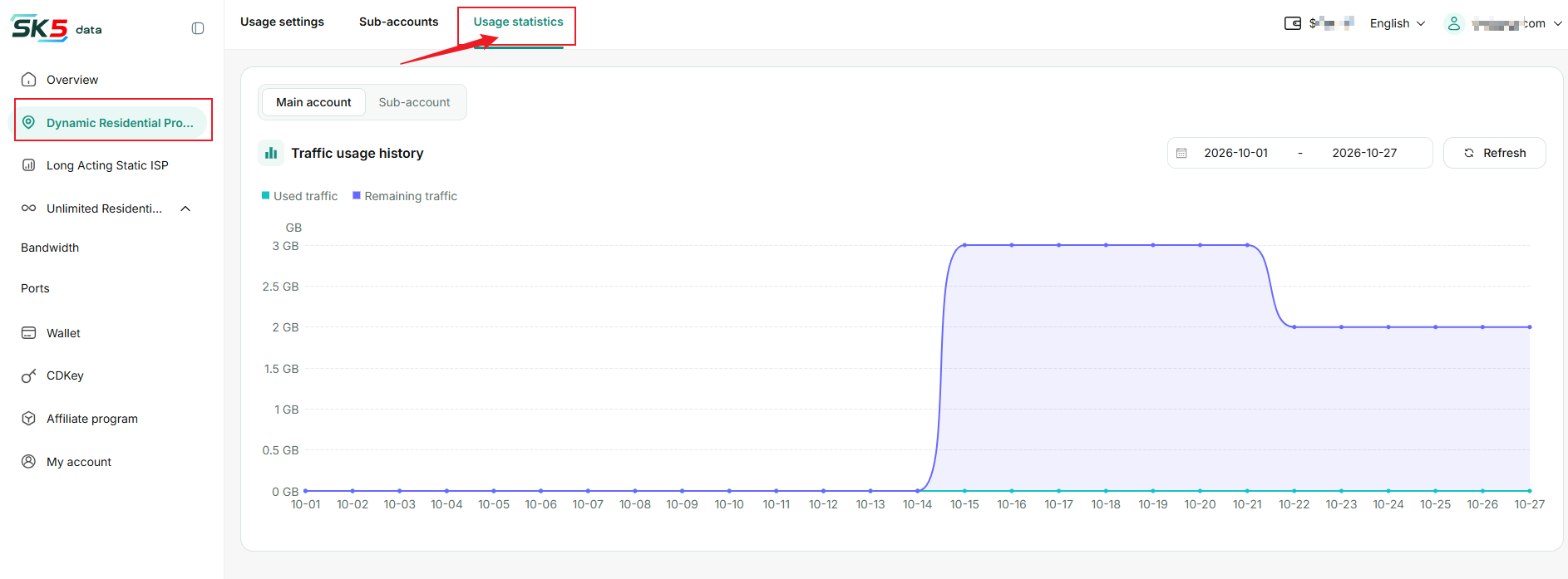
Go to Residential Proxies → Usage Statistics to view traffic consumption for your residential proxies.
You can filter traffic usage data by time range and account level (Main Account / Sub-Account).